Let's talk about how smart RTC is when designing action menu items (Home items).
When designing Menu action (Home items) You want Your users to have on-eye ability to use most user NAV funcionalities. So naturally You'll add actions that represent those form (or card) NAV items.
NAV RTC has programmed logic that sounds something like this:
When designing action cues use those drop down forms as home items because it is big probability that user will use those forms often!
In short this means that all forms or cards used when developing cues those forms will automatically show in home items and you don't need to manually add them on Page actions.
Of course there is a little bit problem if you want to remove those items from home acitons. This is still RTC built in funciontality and it is depended on Microsoft's will to make this RTC modification.
Wednesday, August 3, 2011

NAV 2009 RTC Blank MenuSuite Items
When creating / converting menusuites from Classic client to RTC client there is one thing, besides menu structure and permissions, that You need to think about and that is multilanguage options.
RTC handles multilanguage items drastically harder than classic client. This means that you must specify menusuite item captions for every item and for evey language used. If You don't populate Caption ML those itmes won't show in RTC departmets for language that wasn't specified on seperate items.
Of course Your items will show when viewing RTC using default language.
Saturday, July 30, 2011
Date error when starting RTC report
Microsoft Dynamics NAV 2009 is in many ways depending on Microsoft Windows OS.
One of dependencies we're going to talk about is date formating.
NAV 2009 RTC has issue with interpretation of date formating and displaying reports if date format isn't set up according to RTC liking. In my experience when trying to run RTC reports with standard date formating You'll get following error::

Just for information (You probably won't get same error as I did) this error is displayed in Croatian language (from NAV 2009 R2 Croatian localization) and it means: Date isn't valid.
Solution for this problem is to set up Microsoft Windows Regional Settings and change date formating. Path to date formating set up is:
Control Panel > Regional Settings > Formats > Additional settings... > Date > Date formats.
Here you need to change two fields:

Yuo need to change current values to:
After change (close RTC if you opened it) start NAV 2009 RTC.
One of dependencies we're going to talk about is date formating.
NAV 2009 RTC has issue with interpretation of date formating and displaying reports if date format isn't set up according to RTC liking. In my experience when trying to run RTC reports with standard date formating You'll get following error::
Just for information (You probably won't get same error as I did) this error is displayed in Croatian language (from NAV 2009 R2 Croatian localization) and it means: Date isn't valid.
Solution for this problem is to set up Microsoft Windows Regional Settings and change date formating. Path to date formating set up is:
Control Panel > Regional Settings > Formats > Additional settings... > Date > Date formats.
Here you need to change two fields:
- Short date,
- Long date.

Yuo need to change current values to:
- Short date: d.M.yyyy
- Long date: dd.MMMM.YYYY
After change (close RTC if you opened it) start NAV 2009 RTC.
Thursday, July 28, 2011
RTC Connection to SQL Server
Have you ever had problems with NAV upgrade and RTC connection?
Today we've just finished wih upgrade from NAV 4.0 SP4 to NAV 2006 R2 and had wierdes problem. After upgrade, testing classic client functionalities and RTC functionalities we decided that it's time to upload ugraded database to client server.
After setting up server, installing new clients and testing of classic functionalities we moved on to RTC testing. Of course we thought that we aren't going to experience any problems because of previous hard RTC tesing. And we were wrong.
We got our first error and eaven didn't start RTC on client side. Even we installed Demo database (Cronus International Ltd.) and showed it to he users and modified connection string to our database we got this error:

And then we started mining for solution. This is what we tried:
Last thing that we tried (and that did the trick) was deleting Object metadata table and compiling all objects from Object designer.
Today we've just finished wih upgrade from NAV 4.0 SP4 to NAV 2006 R2 and had wierdes problem. After upgrade, testing classic client functionalities and RTC functionalities we decided that it's time to upload ugraded database to client server.
After setting up server, installing new clients and testing of classic functionalities we moved on to RTC testing. Of course we thought that we aren't going to experience any problems because of previous hard RTC tesing. And we were wrong.
We got our first error and eaven didn't start RTC on client side. Even we installed Demo database (Cronus International Ltd.) and showed it to he users and modified connection string to our database we got this error:

And then we started mining for solution. This is what we tried:
- deleting user personalization table (2000000071),
- restarted NAV services,
- restarted Windows server,
- deleted and updated object medatada table (2000000071) from Cronus databas for common objects.
Last thing that we tried (and that did the trick) was deleting Object metadata table and compiling all objects from Object designer.
CodeGenius for RTC
Open CodeGenius Studio (Configurations) and add a "Third Party" shortcut. You'll open this form:
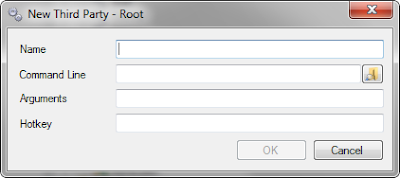
In command line, select the exe of the RoleTailored client. Here's default location:
In the "Arguments" section, you can use the DynamicsNAV://... type of notation. For example:
Or, go a little bit further and include the Role that you want to start as well:
Or, if you want to take it a little bit further, you can include the configuration-mode option:
Bottom line, with CodeGenius you can control all RTC's available options that can be used from command line.

In command line, select the exe of the RoleTailored client. Here's default location:
C:\Program Files\Microsoft Dynamics NAV\60\RoleTailored Client\Microsoft.Dynamics.Nav.Client.exe
In the "Arguments" section, you can use the DynamicsNAV://... type of notation. For example:
DynamicsNAV://LocalHost:7046/DynamicsNav/"CRONUS Hrvatska d.o.o."
Or, go a little bit further and include the Role that you want to start as well:
DynamicsNAV://LocalHost:7046/DynamicsNav/"CRONUS Hrvatska d.o.o." -profile:"ORDER PROCESSOR"
Or, if you want to take it a little bit further, you can include the configuration-mode option:
DynamicsNAV://LocalHost:7046/DynamicsNav/"CRONUS Hrvatska d.o.o." -profile:"ORDER PROCESSOR" -configure
Bottom line, with CodeGenius you can control all RTC's available options that can be used from command line.
Thursday, July 21, 2011
NAV 2009 feature: Substitute posting groups
New feature: Substitute posting groups.
Every functionality in Sales and Marketing, that has any relevance to Posting groups, has new functionality which backs-up original posting group setting.
This functionality enables users to set up substitute posting groups thus disabling users to change posting groups as they please. Substitute Posting Groups option needs a little more effort to set-up, you'll extend NAV's security features to new level.
Standard NAV 2009 feature copies Posting groups directly from customer or vendor cards directly in form field which is dedicated to Posting group (ex. Customer Posting Group). NAV 2009 requires user to set-up rights for changing posting groups, or to enable substitute posting groups.
Setup Path: Financial Management > Receivables > Setup > Sales and Receivables Setup.
This setup form has Boolean field Allow Alter Posting Groups which enables changing of posting groups.
 After enabing change of Posting Groups fill in substitute posting groups. This is done in Posting Groups SubForm
Path for customers: Financial management > Setup > Posting Groups > Customer > Posting Group > Substitutions.

Path for vendors: Financial management > Setup > Posting Groups > Vendor > Posting Group > Substitutions

Here are some pointer for consultants and implementators:
Every functionality in Sales and Marketing, that has any relevance to Posting groups, has new functionality which backs-up original posting group setting.
This functionality enables users to set up substitute posting groups thus disabling users to change posting groups as they please. Substitute Posting Groups option needs a little more effort to set-up, you'll extend NAV's security features to new level.
Standard NAV 2009 feature copies Posting groups directly from customer or vendor cards directly in form field which is dedicated to Posting group (ex. Customer Posting Group). NAV 2009 requires user to set-up rights for changing posting groups, or to enable substitute posting groups.
Setup Path: Financial Management > Receivables > Setup > Sales and Receivables Setup.
This setup form has Boolean field Allow Alter Posting Groups which enables changing of posting groups.
| Customers | Vendors |
| Form ID: 110 | Form ID: 111 |
| SubForm ID: 26504 | SubForm ID: 26505 |
Path for customers: Financial management > Setup > Posting Groups > Customer > Posting Group > Substitutions.

Path for vendors: Financial management > Setup > Posting Groups > Vendor > Posting Group > Substitutions

Here are some pointer for consultants and implementators:
- When entering posting groups through NAV forms you'll get error when trying to enter same substitute posting group as upper (normal) posting group.
- When trying to choose posting group from Posting group flow field, and you choose same posting group you'll get error:

Tuesday, July 19, 2011
RTC vs Classic MenuSuite
In the Classic client, accessing forms and reports is done from the navigation pane, which displays menus that are contained in a MenuSuite object. In the RTC client, navigation to pages and reports is done with:
The Departments page contains entire suite of functionality available to the company. In this way, the Departments page in the RTC is similar to the navigation pane in the Classic client. The Departments page is also a MenuSuite object with layered item structure but is designed specifically for RTC.
When creating a new MenuSuite object, you must select either the Classic client or the RoleTailored client as the target.
- Role Centers
- Departments
The Departments page contains entire suite of functionality available to the company. In this way, the Departments page in the RTC is similar to the navigation pane in the Classic client. The Departments page is also a MenuSuite object with layered item structure but is designed specifically for RTC.
When creating a new MenuSuite object, you must select either the Classic client or the RoleTailored client as the target.
The ID of a MenuSuite object for the RTC will be the Classic client ID plus 1000, as shown in the following table.
| MenuSuite object in the Classic client | MenuSuite object in the RoleTailored client |
| 10 MBS | 1010 Dept - MBS |
| 51 Add-on 1 | 1051 Dept - Add-on 1 |
MenuSuite object is transformed by using the Transformation Input File (TIF) Editor. The MenuSuite transformation creates a suggestion for a Departments page that is based on the navigation pane, transformation rules, and input.
After MenuSuite object transform ation, you must verify whether you need to make additional updates to the transformed Departments page. The RoleTailored client has different functionality and different user experience (UX) requirements than the navigation pane in the Classic client. The additional updates that you make to the transformed Departments page can take advantage of the new functionality.
To reduce the number of these manual updates that you have to make after transformation, verify that you meet the following conditions before transforming a MenuSuite object.
| Condition | Reason |
| PageType is assigned to all form objects. | Form objects will be placed in a Department Category based on PageType. |
| CardFormID is assigned to all list form objects with a card. | Card Form IDs in MenuSuite will be replaced with the related list. |
| Microsoft Dynamics NAV Developer Toolkit is installed to provide data about which reports are ProcessingOnly reports. | ProcessingOnly reports are placed in the Tasks category on department pages. Other reports are placed in the Reports and Analysis category on department pages. |
Wednesday, July 13, 2011
Running Transformation Tool
To run transformation tool witf TIF 1.21.700 editor and convert form to page follow there steps:
- Navigate to Transformation tool: Transformation > Transform forms
- Start funkction: Setup > Get Forms to add forms to transformation tool.
- Enter ID of form you would like to transform (best view from object designer)
- PageType: choose Card or List or whatever option of form best suites your conversion
- Function > Create transformation input > Transform pages. This creates TransformPages.xml which is exported form from transformation tool.
- Export form from Object designer in XML form and name it Forms (forms.xml).
- Run Form transform tool by double clicking on Microsoft.Dynamics.Nav.Tools.FormTransformation.exe which must be located in folder entered on Setup > Transformation card setup.
- Open object designer and import created Pages.XML.
- Compile imported object in Object Designer.
- Edit menu (RTC menu usually named with „Dept –„) and add created page to menusuite.
Transformation Tool MenuSuite
When importing Transformation tool it creates seperate MenuSuite "TIFPM Transformation" with ID 52 and updates Company menusuite with new menu item "Transformation".
Problem with this menusuite is that users cann't see it in their normal view because menusuite created in Company menusuite has no itmes, just tree structure.
Sollution to this problem is to open two clients and copy/paste Transformation menuitems from "TIFPM Transformation" menusuite from one client to Company menusuite in other client. This copy/paste operation is done in design function of menusuite.
After copy / paste is completed you can simply delete TIFPM Transformation menusuite because all items are in Company menusuite.
Be advised to close and compile LAST one menusuite that you did paste operation.
Subscribe to:
Posts (Atom)